Command Centre
Your IntelMCP dashboard, as its own page in Claude.
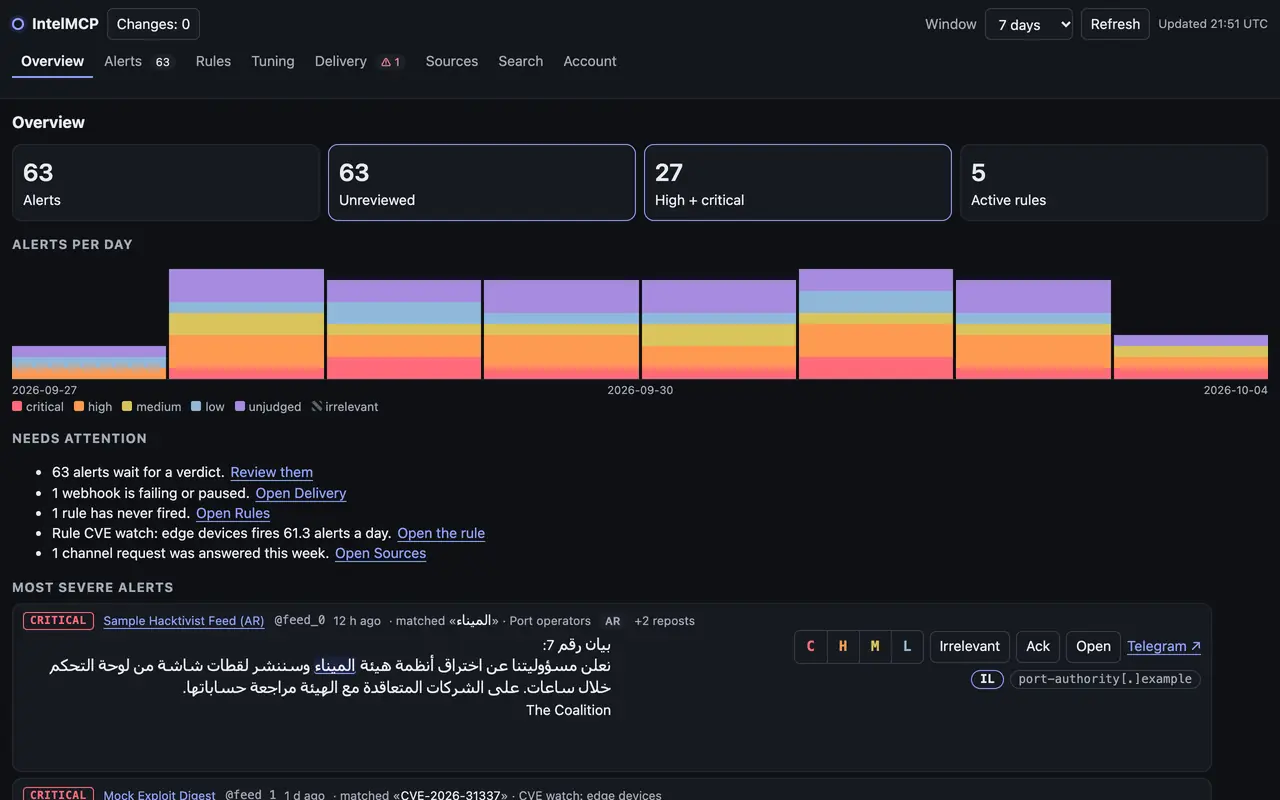
The Command Centre is IntelMCP's live dashboard as a private page in your own Claude account: open it from the sidebar, see what needs attention, and work through your alerts without starting a chat.
What you get
The same eight views as the dashboard in chat: Overview, Alerts, Rules, Tuning, Delivery, Sources, Search and Account.
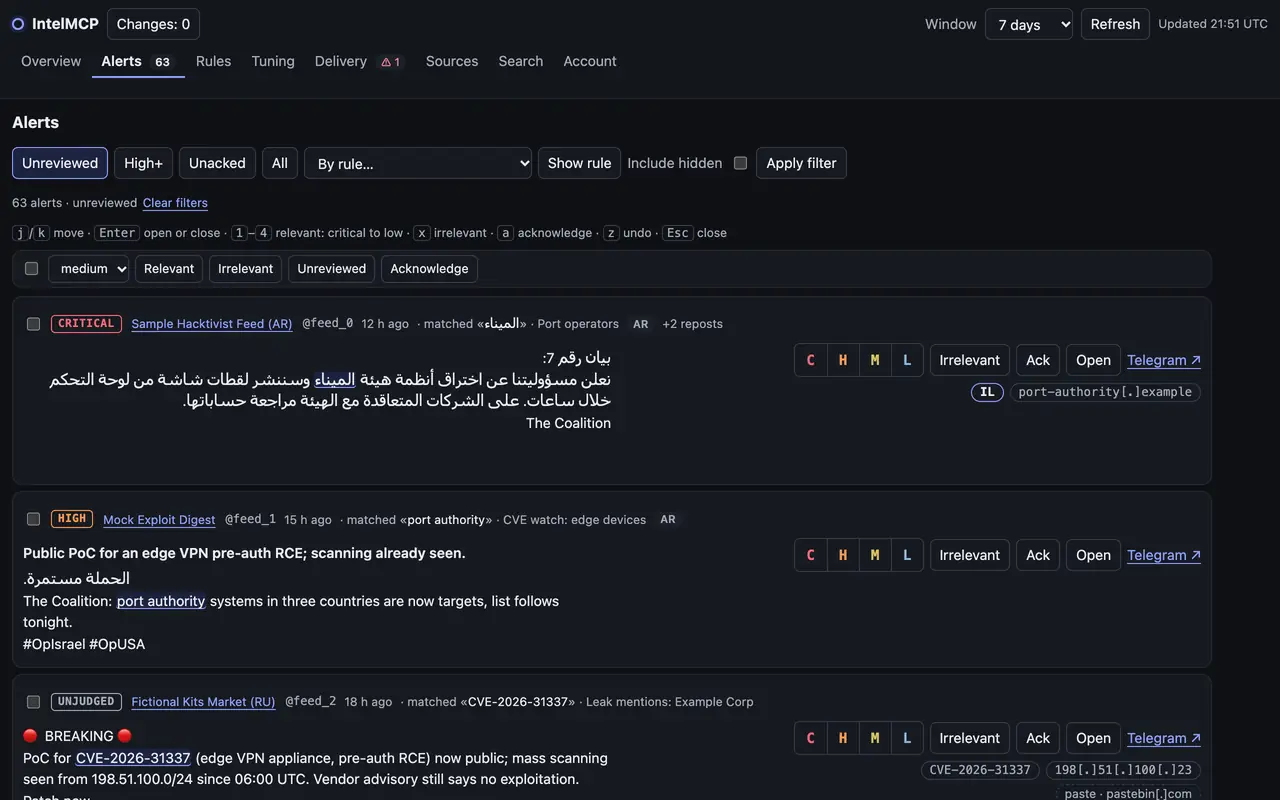
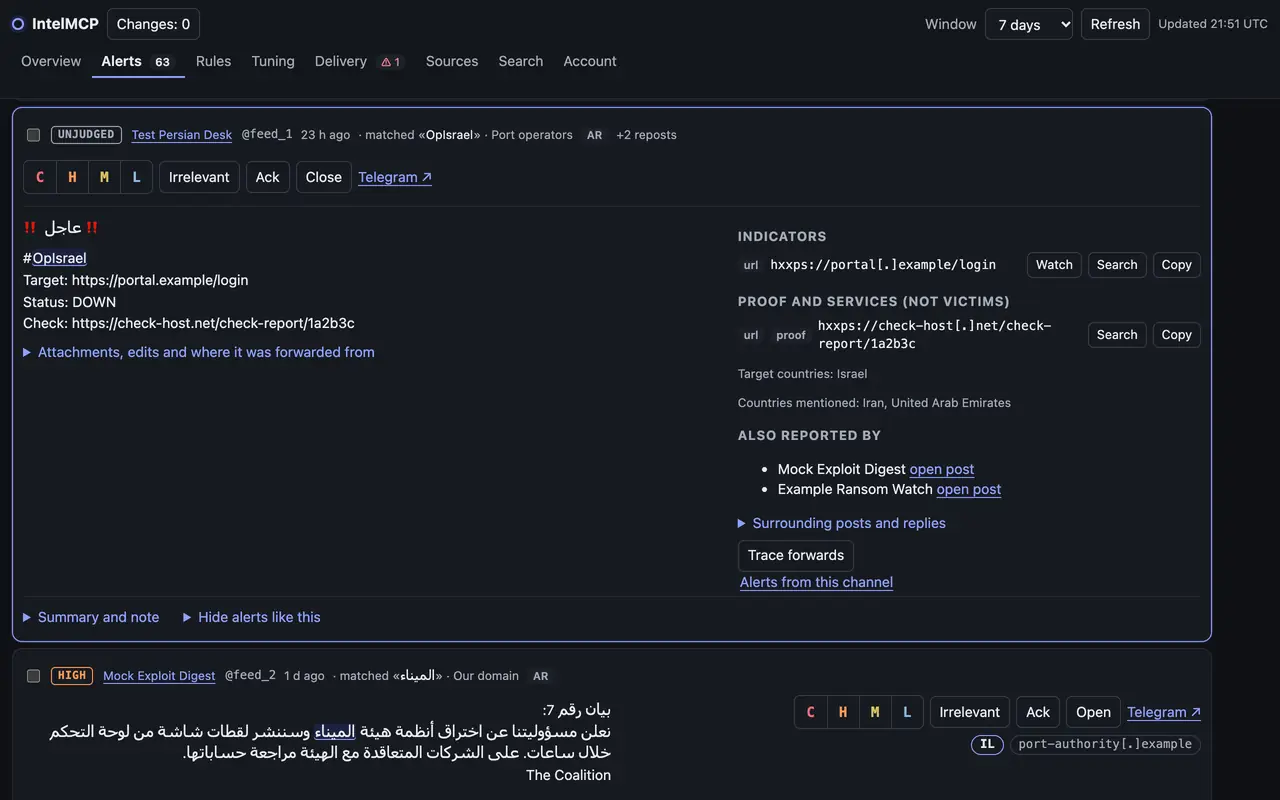
- The post itself, not a summary. Each alert card shows the Telegram post with the matched word highlighted, the target country and the indicators found in it.
- Proof is not a victim. Links to check-host reports, pastes and file hosts are labelled as proof, not as victims, and are never offered as something to watch.
- Click to read it all. Click a card to open the whole post, with where else it was reported and the context around it.
- Triage with buttons or keys. Mark severity, irrelevant or acknowledged. Your changes wait under Changes until you press Apply, so you can undo before anything is saved.
- Rules, tuning and delivery in one place. Check which rules fire too often or never, adjust your watch profile and exclusions, and see whether your webhooks are working.
- Sources and search. Check whether a channel is collected, request one, and search the collection without leaving the page.
Get it in three steps
Today the Command Centre is created from Claude Code, once. After that you open it in claude.ai.
-
Connect IntelMCP in claude.ai
The page uses your IntelMCP connector in claude.ai. Open Settings → Connectors → IntelMCP → Connect. Not added yet? Add it first.
-
Install the Claude Code plugin
In Claude Code, install the IntelMCP plugin, version 0.1.8 or later:
/plugin marketplace add intelmcpops-creator/intelmcp-plugin
/plugin install intelmcp@intelmcp
Already installed? Update it from Claude Code's
/pluginmenu. -
Ask Claude to create it
Run
/intelmcp:command-centre, or ask: "Create my IntelMCP command centre". Claude creates the page and replies with the link.
In claude.ai and Claude Desktop chat
You can also open the same dashboard inside a conversation: ask "Show my IntelMCP dashboard", or open + → Connectors → Add from IntelMCP → Dashboard. It has an Expand button for full screen. In Cowork mode the interactive panel does not appear; Claude draws a summary page instead.
The first time you open it
- Allow IntelMCP once. The first time the page opens, Claude asks once whether the page may use IntelMCP. Allow it: the page then loads your data through your own IntelMCP connection.
- Find it again in Artifacts. It is listed in claude.ai → Artifacts as "IntelMCP Command Centre". Pin it to the sidebar to open it in one click.
Keyboard
In the Alerts view:
| Key | What it does |
|---|---|
| j / k | Move to the next or previous alert |
| Enter | Open the alert, or close it |
| 1 to 4 | Relevant, from critical (1) to low (4) |
| x | Irrelevant |
| a | Acknowledge |
| z | Undo the last change |
| Esc | Close the open alert |
Each change waits under Changes. Press Apply to send them all at once. Times are in UTC.
Questions
Why can't I share it?
It is private to you and cannot be shared. Claude does not allow pages that use a connector to be shared by link; this protects each organization's data. Each person creates their own: colleagues who use IntelMCP create their own page.
Why does Claude ask permission?
The page reads and changes your IntelMCP data through your own connection, so Claude asks once whether the page may use IntelMCP. Allow it, and the page can load your alerts.
I lost the link.
Open claude.ai → Artifacts and look for "IntelMCP Command Centre", or run /intelmcp:command-centre in Claude Code again. Pin it to the sidebar so you don't lose it.
Does it cost extra?
No. It comes with your IntelMCP subscription: the Overview, Alerts and Tuning views are part of the Monitor plan, $25 per month. What it loads counts toward the plan's fair use, like any request in chat.
Which data does it show?
It uses your own IntelMCP connection, so it shows only your organization's data (your alerts, rules, settings and sources), under your plan. Posts are third-party content from public Telegram channels: leads to check, not facts.
Open your alerts the way you open your inbox.
Subscribe, connect IntelMCP in claude.ai, then run /intelmcp:command-centre in Claude Code.